


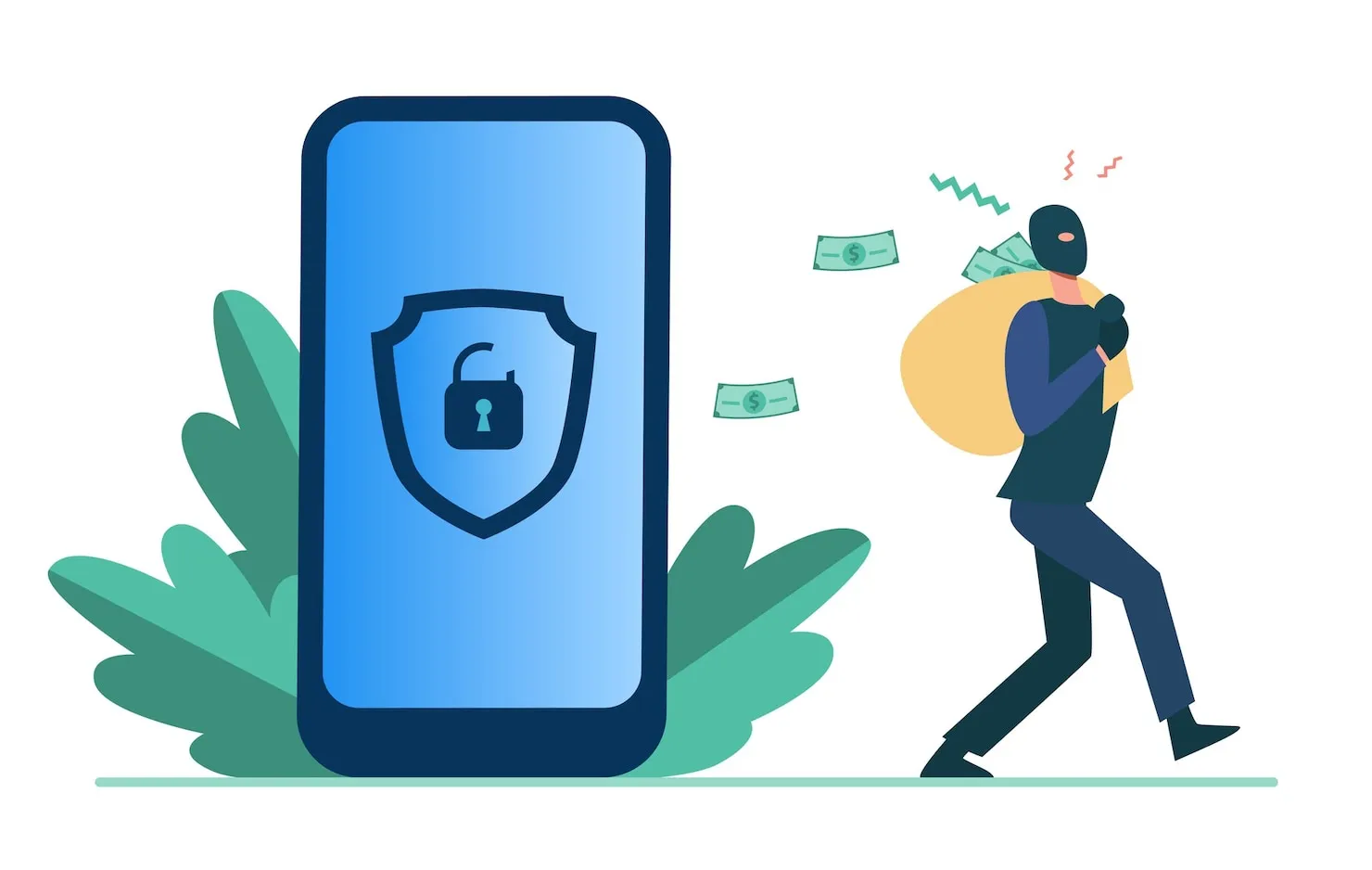
With the increasing use of technology in our daily lives, it’s important to be aware of the potential risks that come with it. One of these risks is the possibility of having your iPhone hacked. Hackers for hire can gain access to your personal information, such as your contacts, emails, and even your financial information. In this article, we’ll discuss how to tell if your iPhone has been hacked and what steps you can take to protect yourself.
One of the first signs that your iPhone has been hacked is a sudden decrease in battery life. This could be due to the fact that the hacker is using your phone to perform actions in the background, such as sending spam emails or making unauthorized calls. Another sign is if you notice unusual activity on your phone bill, such as calls or texts to unknown numbers. In addition, if you notice that your phone is running slower than usual or if apps are crashing frequently, it could be a sign that your iPhone has been hacked.
If you suspect that your iPhone has been hacked, there are steps you can take to protect yourself. One of the first things you should do is change your passwords for all of your accounts, including your Apple ID. You should also make sure that your iPhone is running the latest version of iOS, as this will help to patch any security vulnerabilities. Finally, you can install antivirus software on your iPhone to help detect and remove any malware that may be present.
Understanding the Basics of iPhone Security
When it comes to iPhone security, there are a few basic concepts that users should be aware of to help protect their devices from being hacked.
Passwords and Passcodes
One of the most important security features on an iPhone is the password or passcode. This is the first line of defense against unauthorized access to the device. Users should choose a strong, unique password or passcode that cannot be easily guessed or cracked. It is also recommended to enable two-factor authentication for an added layer of security.
Software Updates
Another crucial aspect of iPhone security is keeping the device’s software up to date. Apple regularly releases updates that include security patches and bug fixes. It is important to install these updates as soon as they become available to ensure that any known vulnerabilities are addressed.
App Permissions
When installing apps on an iPhone, users should pay attention to the permissions that the app requests. Apps may ask for access to various features and data on the device, such as the camera, microphone, contacts, and location. Users should only grant permissions that are necessary for the app to function properly and should be cautious of granting permissions to unknown or untrusted apps.
iCloud Security
iCloud is Apple’s cloud storage service that allows users to store and sync data across multiple devices. To ensure the security of iCloud data, users should enable two-factor authentication and use a strong, unique password. It is also recommended to regularly review the devices that are connected to iCloud and to revoke access for any devices that are no longer in use.
By understanding these basic concepts of iPhone security, users can take steps to protect their devices from being hacked and their personal data from being compromised.
Recognizing Signs of a Hacked iPhone
If you suspect that your iPhone has been hacked, it is important to take immediate action. Here are some signs that your iPhone may have been hacked:
Unexpected Battery Drain
If your iPhone’s battery life has suddenly decreased significantly, it could be a sign that your phone has been compromised. Malware and spyware can drain your battery by running in the background and using up resources.
Increased Data Usage
If you notice a sudden increase in your data usage, it could be a sign that your iPhone has been hacked. Malware and spyware can use your data plan to send information to a remote server without your knowledge.
Slow Performance
If your iPhone is running slower than usual, it could be a sign that it has been hacked. Malware and spyware can use up resources and slow down your phone’s performance.
Unusual Pop-ups
If you are seeing unusual pop-ups or ads on your iPhone, it could be a sign that your phone has been hacked. Malware and spyware can display pop-ups and ads to generate revenue for the hackers.
If you notice any of these signs, it is important to take action immediately. You should run a virus scan on your iPhone and consider resetting your phone to its factory settings. It is also important to change your passwords and enable two-factor authentication to prevent further attacks.
Checking for Unfamiliar Apps
One of the most common signs that an iPhone may be hacked is the presence of unfamiliar apps. Hackers often install malicious apps on the device, which can be used to steal personal information or spy on the user’s activities.
To check for unfamiliar apps, the user should first go to the home screen and look for any apps that they do not recognize. They should also check the App Store to see if there are any apps that they did not download.
If the user finds an unfamiliar app, they should delete it immediately. They can do this by pressing and holding the app icon until it starts to wiggle, and then tapping the “X” in the corner of the app icon.
It is also important to note that some hackers may hide their apps from the home screen. To check for hidden apps, the user should go to the Settings app and navigate to General > iPhone Storage. This will display a list of all the apps installed on the device, including any that may be hidden.
If the user finds an unfamiliar app in the list, they should delete it immediately. They can do this by tapping on the app and then selecting “Delete App”.
In summary, checking for unfamiliar apps is an important step in determining whether an iPhone has been hacked. Users should regularly review their apps and delete any that they do not recognize to help protect their personal information.
Analyzing Unusual Account Activities
One of the most common signs of a hacked iPhone is unusual account activities. If you notice any of the following activities, it is possible that your iPhone has been hacked:
- Unusual login attempts
- Unfamiliar purchases or charges
- Changes in account settings without your knowledge
- Unusual location activity, such as logins from a different country or state
If you suspect that your iPhone has been hacked, the first thing you should do is check your account activities. Here are the steps to follow:
- Open the Settings app on your iPhone.
- Tap on your name at the top of the screen.
- Tap on “iTunes & App Store”.
- Tap on your Apple ID.
- Tap on “View Apple ID”.
- Scroll down to the “Purchase History” section and check for any unfamiliar purchases or charges.
- Tap on “Device Activity” to see a list of devices that have used your Apple ID recently. If you see any unfamiliar devices, it is possible that your iPhone has been hacked.
If you notice any unusual account activities, it is important to take action immediately. Change your Apple ID password and enable two-factor authentication to prevent further unauthorized access to your account. Contact Apple Support for further assistance if necessary.
Remember, prevention is always better than cure. To prevent your iPhone from being hacked, make sure to keep your software up to date, avoid clicking on suspicious links or downloading unknown apps, and use strong and unique passwords for all your accounts.
Identifying Changes in Phone Settings
One of the most common signs of a hacked iPhone is changes in phone settings. Hackers may alter settings to gain access to your device or to monitor your activity. Here are some changes in phone settings that may indicate your iPhone has been hacked:
Unusual Battery Usage
If your iPhone battery is draining faster than usual, it may be a sign that your device has been hacked. Hackers may run malicious programs in the background, causing your battery to drain quickly. You can hire a hacker for cell phone hacking
Unfamiliar Apps
If you notice unfamiliar apps on your iPhone that you didn’t download, it may be a sign that your device has been hacked. Hackers may install apps to gain access to your personal information or to spy on your activity.
Strange Pop-Ups
If you see strange pop-ups on your iPhone, it may be a sign that your device has been hacked. Hackers may use pop-ups to trick you into downloading malicious software or to gain access to your personal information.
Unusual Network Activity
If you notice unusual network activity on your iPhone, it may be a sign that your device has been hacked. Hackers may use your device to send spam emails or to launch attacks on other devices.
Changes in Security Settings
If you notice changes in your iPhone’s security settings, it may be a sign that your device has been hacked. Hackers may disable security features to gain access to your device or to monitor your activity.
If you notice any of these changes in your iPhone settings, it’s important to take action immediately. You should run a malware scan, change your passwords, and contact Apple Support for further assistance.
Understanding Spyware and Malware
Spyware and malware are two types of malicious software that can be used to hack into an iPhone.
Spyware is designed to collect data from the device without the user’s knowledge. It can be used to monitor the user’s activity, track their location, and even record their conversations. Some spyware can also access the user’s personal information, such as their passwords and credit card details.
Malware, on the other hand, is designed to damage the device or steal data from it. It can be used to delete files, install other malicious software, or even take control of the device. Malware can also be used to steal the user’s personal information, such as their contact list and email messages.
Both spyware and malware can be installed on an iPhone in a number of ways. They can be downloaded from the internet, installed through email attachments, or even installed through text messages. In some cases, they can be installed through a vulnerability in the device’s operating system.
To protect against spyware and malware, it is important to keep the iPhone’s operating system up to date and to avoid downloading apps from untrusted sources. It is also important to be careful when opening email attachments and to avoid clicking on links from unknown sources.
Implementing iPhone Security Measures
Updating iOS Regularly
One of the most crucial steps in securing an iPhone is to keep the operating system up to date. Apple regularly releases security patches and bug fixes, which can help prevent hackers from exploiting vulnerabilities in the system. To check for updates, go to Settings > General > Software Update. If there is an update available, download and install it as soon as possible.
Using Strong Passwords
Another important security measure is to use strong, unique passwords for all accounts and apps on the iPhone. A strong password should be at least 12 characters long and include a mix of upper and lowercase letters, numbers, and symbols. Avoid using common words or phrases, and never reuse passwords across multiple accounts. Consider using a password manager app to generate and store strong passwords.
Enabling Two-Factor Authentication
Two-factor authentication (2FA) is an extra layer of security that requires a user to provide two forms of identification to access an account. Enabling 2FA on an iPhone can help prevent unauthorized access to sensitive information. To enable 2FA, go to Settings > [User’s Name] > Password & Security > Two-Factor Authentication. Follow the prompts to set up 2FA using a trusted device or phone number.
By implementing these iPhone security measures, users can significantly reduce the risk of their device being hacked. It is important to stay vigilant and regularly review security settings to ensure the highest level of protection.
What to Do If Your iPhone is Hacked
If you suspect that your iPhone has been hacked, you should take immediate action to protect your personal information. Here are some steps you can take to protect yourself:
Removing Unfamiliar Apps
The first thing to do is to remove any unfamiliar apps from your iPhone. These apps could be malicious and may be used to steal your personal information. To remove an app, simply press and hold its icon until it starts shaking, then tap the “X” button in the corner of the icon. Confirm that you want to delete the app, and it will be removed from your iPhone.
Changing Account Passwords
The next step is to change your account passwords. If your iPhone has been hacked, the hacker may have access to your passwords, so it’s important to change them as soon as possible. You should change the passwords for all of your accounts that are linked to your iPhone, including your email, social media, and banking accounts. Make sure to use strong, unique passwords for each account.
Contacting Apple Support
If you’re still concerned that your iPhone has been hacked, you should contact Apple Support for assistance. Apple Support can help you determine if your iPhone has been hacked, and can provide advice on how to protect your personal information. You can contact Apple Support by phone, email, or chat.
Conclusion
In conclusion, it is essential to be vigilant and take necessary precautions to protect your iPhone from hacking attempts. The signs mentioned in this article can help you identify if your iPhone is hacked, but it is always better to take preventive measures to avoid such situations altogether.
Some of the preventive measures include keeping your iPhone updated with the latest software updates, using strong passwords, avoiding suspicious links and downloads, and using a reliable antivirus software. Additionally, it is recommended to avoid using public Wi-Fi networks, especially for sensitive activities such as online banking.
If you suspect that your iPhone is hacked, it is crucial to act immediately and seek help from a professional. Ignoring the signs can lead to severe consequences, such as identity theft, financial loss, and data breaches.
Remember, prevention is always better than cure. By taking the necessary precautions, you can ensure the safety and security of your iPhone and personal information.
Frequently Asked Questions
How can I tell if my iPhone has been compromised?
There are a few signs that your iPhone may have been compromised, including unusual battery drain, slow performance, and unexpected pop-ups or ads. Additionally, if you notice that your phone is making calls or sending texts on its own, or if you see unfamiliar apps or files on your device, it may be a sign that your iPhone has been hacked.
What are some signs that my iPhone has been hacked?
Some signs that your iPhone may have been hacked include unusual activity on your phone bill, such as calls or texts to unfamiliar numbers, or charges for premium services that you did not sign up for. You may also notice that your phone is running hot or that your data usage has increased significantly.
Is it possible for an iPhone to be hacked through Safari?
Yes, it is possible for an iPhone to be hacked through Safari. Hackers can use malicious websites or pop-ups to install malware on your device, which can then be used to steal your personal information or track your online activity.
How do I run a security check on my iPhone?
To run a security check on your iPhone, you can use the built-in security features, such as Touch ID or Face ID, to protect your device from unauthorized access. You can also use a third-party security app to scan your device for malware and other security threats.
Can I check if my phone has been hacked?
Yes, you can check if your phone has been hacked by looking for signs of unusual activity on your device, such as unexpected pop-ups or ads, unfamiliar apps or files, or unusual battery drain. You can also use a security app to scan your device for malware and other security threats.
Will my iPhone notify me if it has been hacked?
No, your iPhone will not notify you if it has been hacked. It is important to stay vigilant and look for signs of unusual activity on your device, and to take steps to protect your personal information and online activity.









Leave a comment